
Ask your files.
Check the source.
Find the original, check the source, review the draft — then decide what runs.
Windows · v4.0.82 · 80 MB · Core program free
This is my room! Ask about your files and I'll walk you to the file, page or cell behind the answer.
This room's core skills
Sources you can recheck
Trace every answer back to the original file, page, spreadsheet or cell.
Read first. Run after review.
Your files are read-only. Review the draft result, then approve the next step.
Bring your own AI
Connect a supported account or local model with no extra BARUN fee. Provider charges are separate.
Here's how it flows.
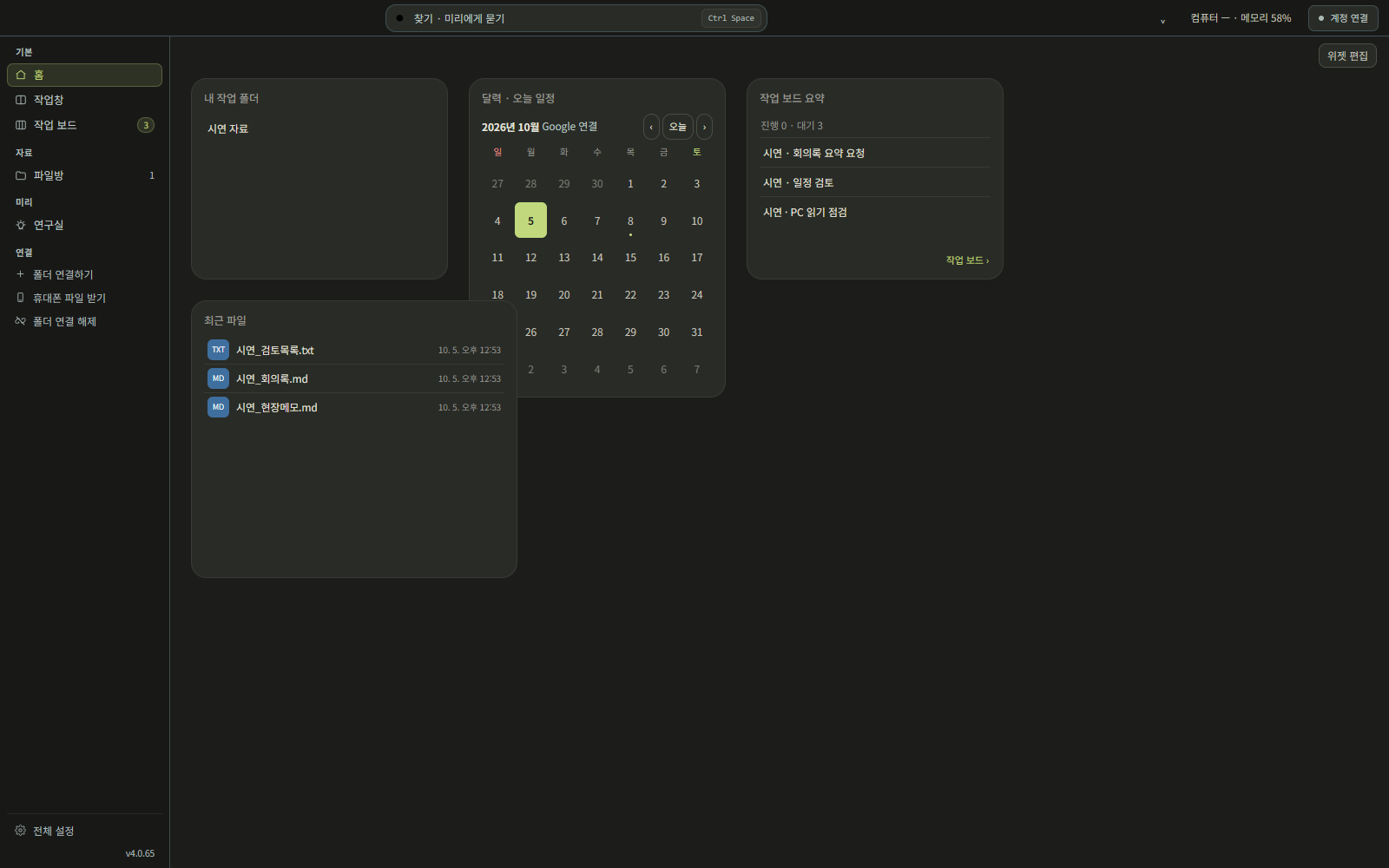
Miri hands out the work.
Docs, assistant, design, CAD and dev bots each move their own tasks forward. Tap a task card to see its overview, files and history.





Weekly work report
In progress3 files checked · drafting the report
“Turn this week's work into a report.”
Docs bot → Assistant bot
After the draft, the assistant bot checks the review date and recipients.
Miri's team
All features
ITEM LIST · 06From files to sources
Search the files and extracted text in a project folder. Supported files show the original along with the page, sheet or cell.
Thoughts into notes
Keep what you learn while working as notes linked to related files. Earlier note versions and links stay visible.
Schedules and photos
Separate confirmed dates from candidates, and sort site photos and supervision records by job.
Role bots and a task board
Split docs, assistant and dev work into connected run paths. Watch waiting, in-progress and needs-review states on the board.
Review the draft, then approve
Draft with your connected AI and check the sources. Supported text edits are saved to a separate output folder after approval, so originals stay intact.
Look together in the workspace
Open an image, mark it up with a pen and talk it through with Miri. Pad links need the same Wi‑Fi and product support.
Install and use
Install and open
Install the Windows program and launch Miri Agent.
Connect a folder
Pick the project folder to organize and check what Miri may read.
Connect and ask
Set up the AI model you need, then describe the files and the result you want.
Check the result
Review the records and report drafts, then save what you need.
Start for free.
Organizing project files, search, knowledge notes and schedules — the core program starts free.
Connecting a supported AI account or local model adds no BARUN fee. External AI providers charge separately. AI tasks need a model connection; when you use an external model or service, the files you choose may be sent to it.
System
Good to know
FAQ
Q. Will connecting a folder change my originals?
Connections are read-focused. Miri organizes file lists and extracted copies without renaming or moving the originals.
Q. Can I use it without AI?
Yes — file lists, notes and schedules work without it. Summaries and drafts need a model connection; check that service's terms and costs.